

FAQ
How to Edit Displayed Fields in Inventory list
You can customize the displayed fields and rearrange their order in the inventory list.
To customize the displayed fields, follow the steps below.
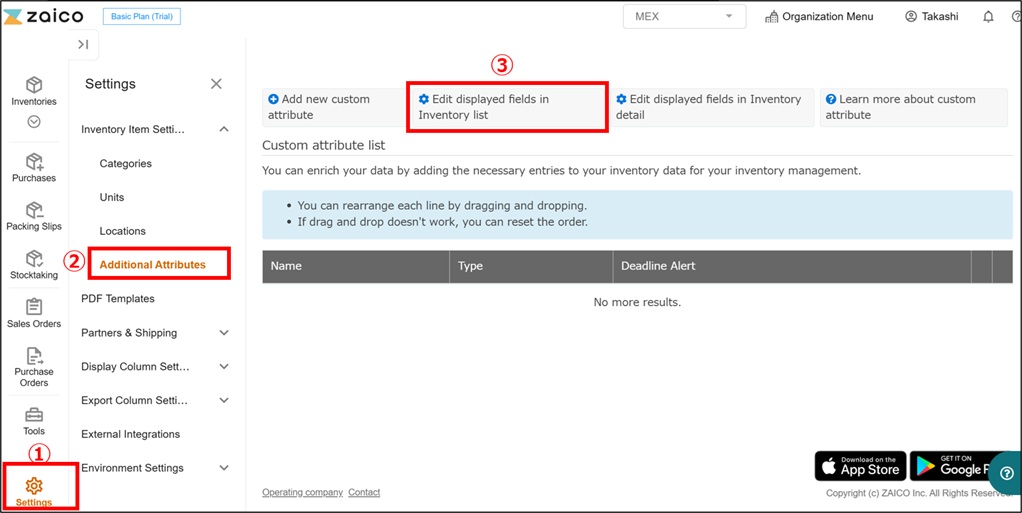
Go to "Settings" → "Additional Attributes", then click “Edit displayed fields in Inventory list".
Select customize the displayed fields, and rearrange their order using drag and drop.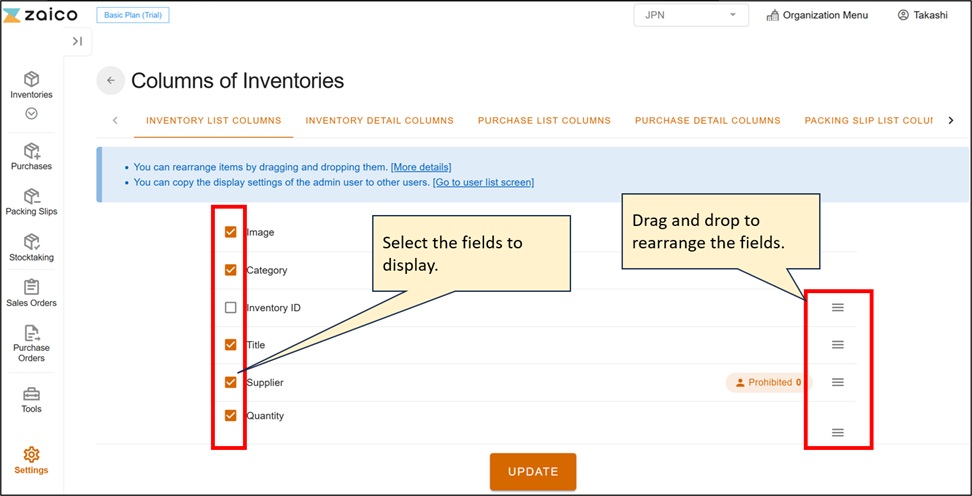
The displayed fields and their order have been updated successfully.
You can use the same procedure to customize the displayed fields and rearrange their order on other screens.
